 TwinHop
Reinstall apps on iPhone from your purchase history
TwinHop team · Updated
If an app is still in the App Store, tap its icon or find it under your account’s purchases on the iPhone, and it downloads again. If it has left the App Store, the phone can’t download it, but TwinHop can try to reinstall it over a cable from your purchase history. Whether that works is up to Apple, app by app. Either way only the app comes back, not its data. This mode, “Reinstall apps from purchases”, needs neither a backup nor the old phone.
When this helps
- After an iCloud restore, some icons stay gray with “Waiting…” and nothing happens when you tap them. Often the app is no longer in the App Store, so the phone has nowhere to download it from.
- The old phone is gone and you want your apps back on the new one without searching for each of them.
- You deleted an app that has since disappeared from the App Store, and you want it back.
If an icon shows a small cloud and the app is still in the App Store, you don’t need TwinHop: tap the icon and the phone downloads it itself, keeping the data that is already on the phone. Apple describes downloading apps again in Download apps on your iPhone or iPad.
TwinHop moves apps together with their data to a new iPhone, from a Mac or a Windows PC.
Download TwinHopWhere the app comes from
Apple separates two things: the App Store catalog, which anyone can browse, and your purchases, the history of every app your Apple Account has ever downloaded, free ones included. When a developer withdraws an app, it disappears from the catalog, and new people can no longer get it. But for many apps Apple still provides the file to people who already have it in their purchases.
The phone only knows the catalog. TwinHop downloads from your purchases on the computer and installs the apps over the cable, one at a time.
How it works
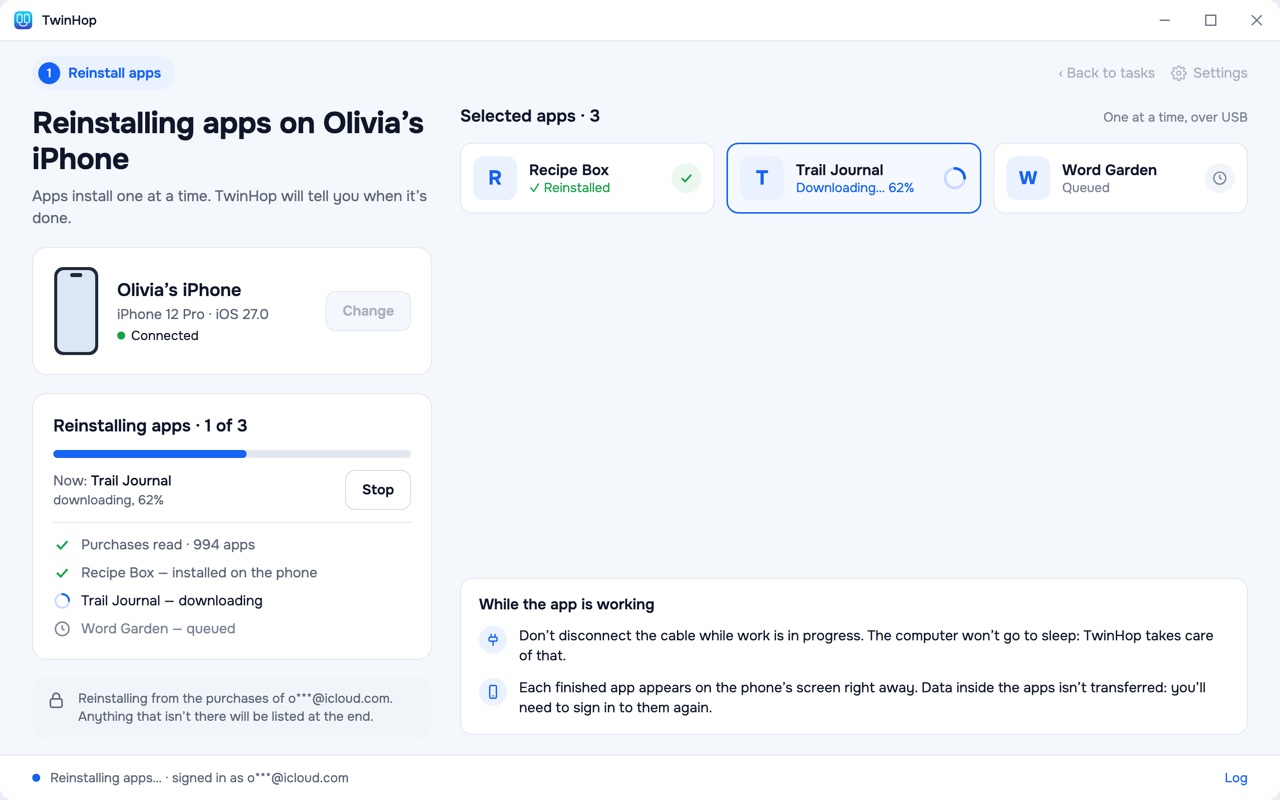
- Connect the iPhone with a cable, unlock it and tap “Trust”. On the first screen, choose “Reinstall apps from purchases”.
- Sign in to your Apple Account, the one the apps were downloaded with. Apple sends a verification code to your other devices or by text message; enter it in TwinHop. Your password goes from your computer straight to Apple and is never sent to us.
- Pick the apps. TwinHop reads the list from the phone itself: the icons on the Home Screen, including the ones waiting, and your purchase history. Click “Show everything that was on the iPhone” to see the full list. Missing an app? Type its name in the search field: TwinHop looks for it in your purchases and in the App Store.
- Click “Reinstall”. The apps install one at a time. The phone doesn’t restart and nothing else on it changes. At the end TwinHop shows what came back and, for anything that didn’t, the reason.
The limits, honestly
- Only your own purchases. Apple gives an app only to the account that obtained it. If an app was downloaded with a different Apple Account (an old one, a family member’s, a work account), sign in with that one. An app that was never in your purchases can’t be reinstalled once it has left the App Store, and no search or button changes that.
- No app data. This mode installs the apps themselves. Data inside them isn’t included: you will sign in to the apps again. Data comes only from a backup of the old phone; with one, use a move instead.
- It depends on Apple. Downloading from purchases relies on an Apple mechanism that isn’t documented, and Apple may change it. Whether a withdrawn app can still be downloaded is also decided by Apple, app by app.
- Sign-in can depend on the network. Apple sometimes refuses sign-in from third-party programs on some networks. If the sign-in fails before your password is even checked, try another network, for example your phone’s Personal Hotspot. Before you buy, you can check sign-in from the first screen of TwinHop: it needs neither a key nor a phone.
- Not every build. TestFlight, enterprise and developer builds aren’t in the App Store and can’t be reinstalled this way. Very old apps that were never updated may be refused by recent iOS versions.
- Windows 7 and 8. Apple Account sign-in doesn’t work there, so this mode doesn’t either. Use Windows 10 or 11.
Don’t delete the gray icons
It is tempting to clean up icons that won’t download. Don’t: an icon that is still waiting holds the record of which app was on the phone, and TwinHop uses it to build the list. If the phone asks whether to delete or keep an app it can’t install, choose to keep it.
What it costs
This mode is part of the TwinHop license: $19.99 for one year, with no automatic renewal, on Mac and Windows. It installs only what your Apple Account owns, and only while Apple allows it; the Terms say so too.